ergonis software - software that just works
features


Type special characters with PopChar - Feature overview

Some of the reasons why you want to type special characters with PopChar:

Inserts special characters right into your document - no font cheat sheet, no copy & paste, no need to remember keyboard combinations
Simple to use: Just click to insert characters
Full Unicode support with different comfortable views and pop-up menu for quick navigation among groups of characters.
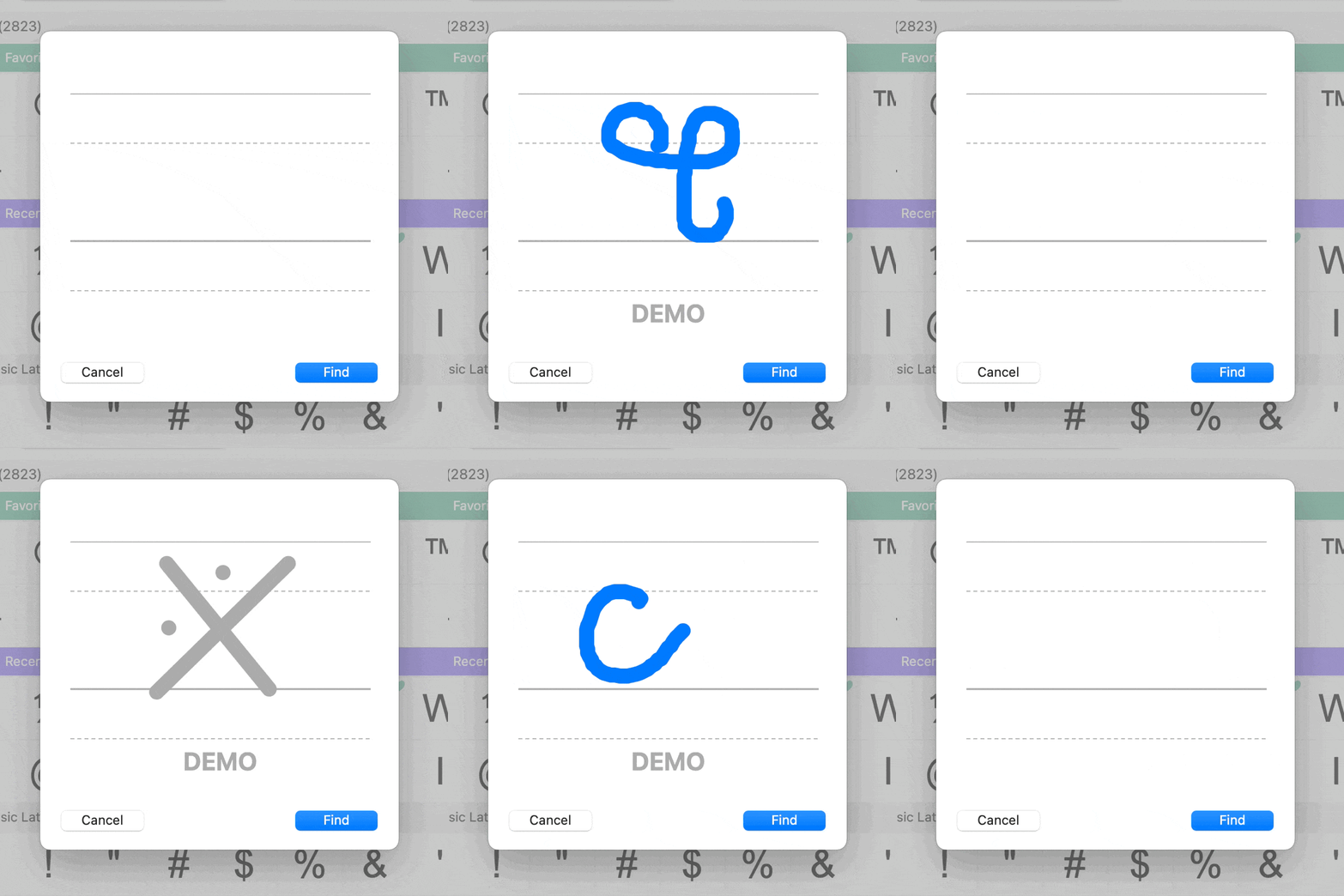
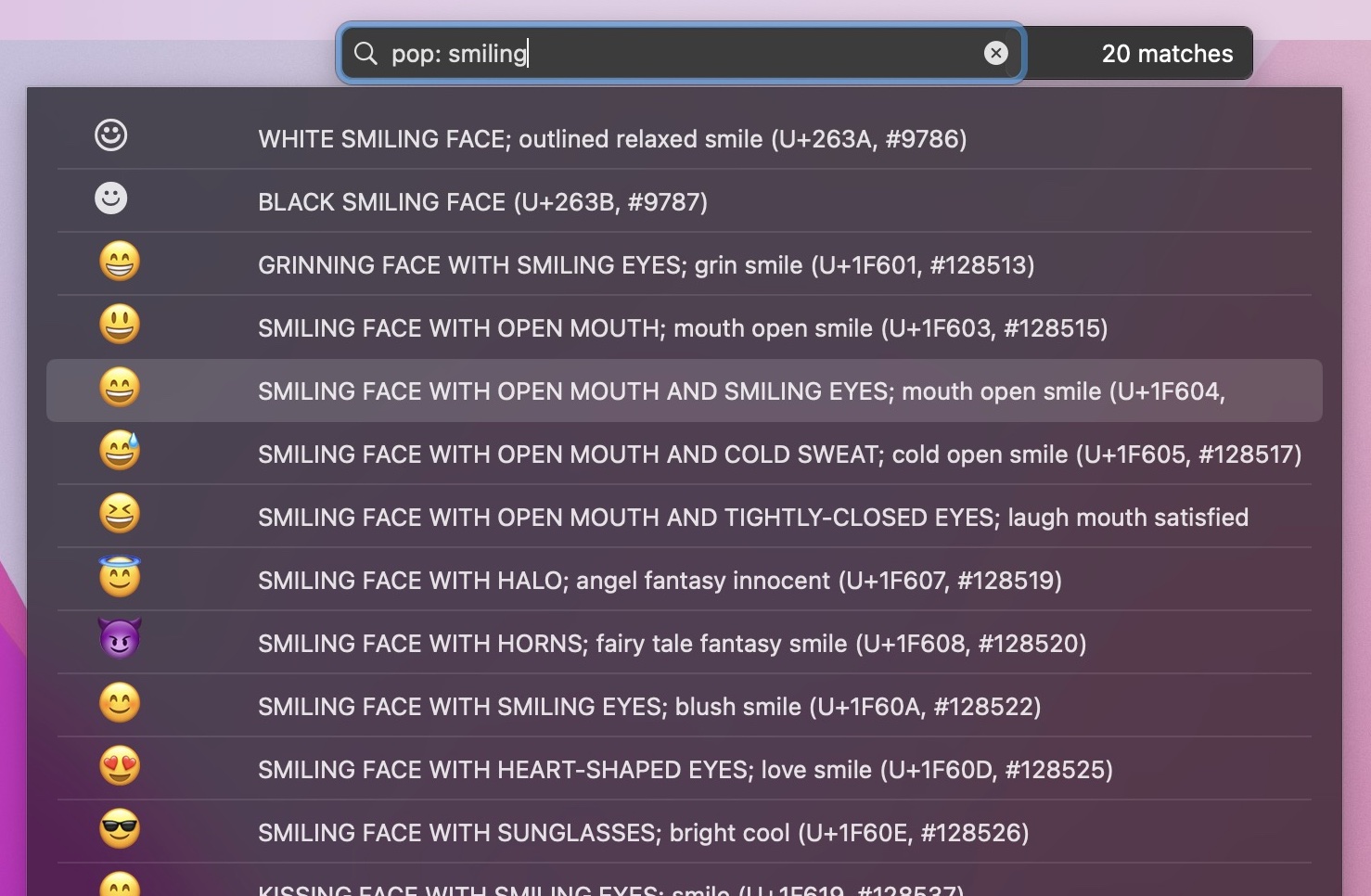
Search for characters by name, by Unicode number or by simply pasting some text from your document into the search field.
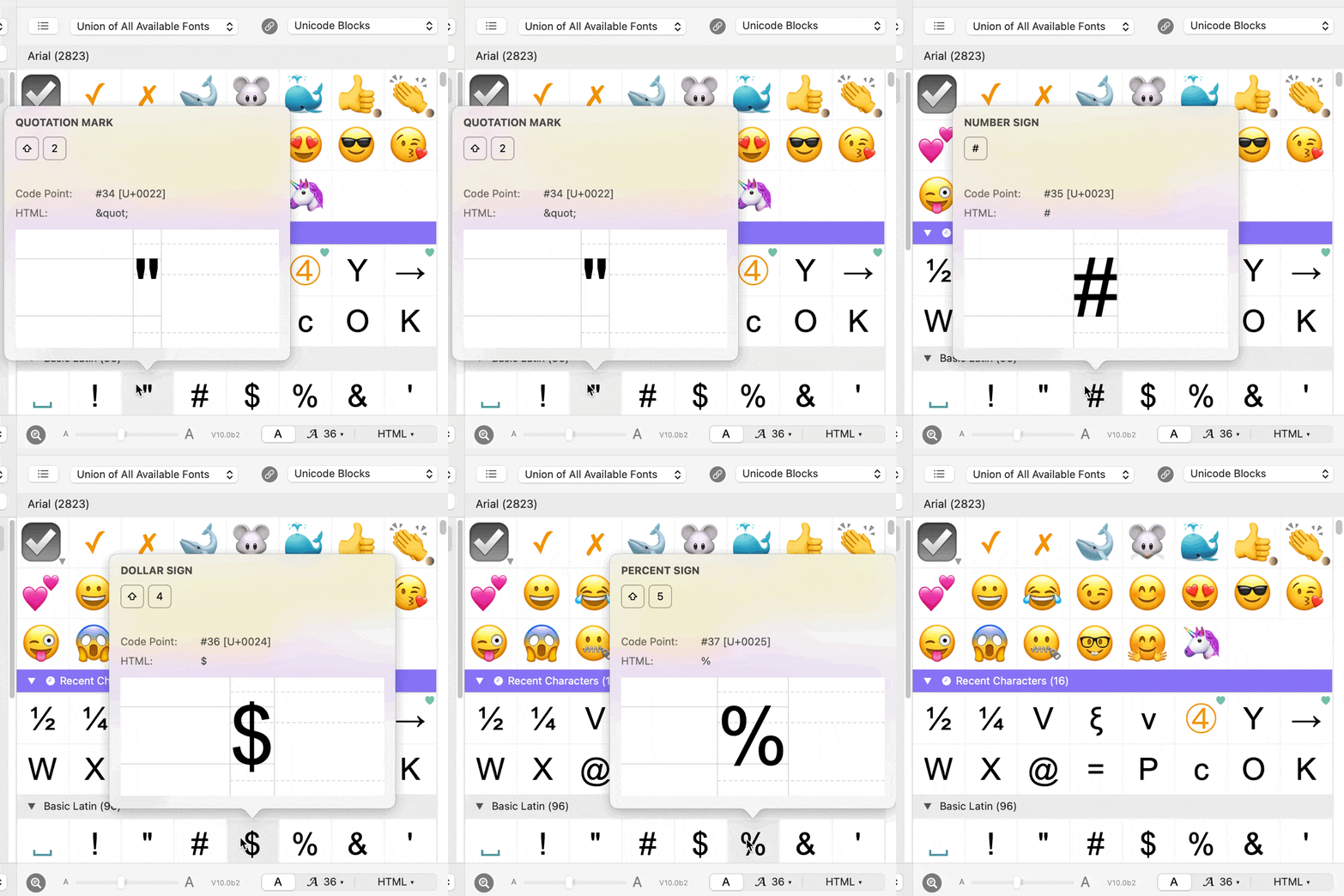
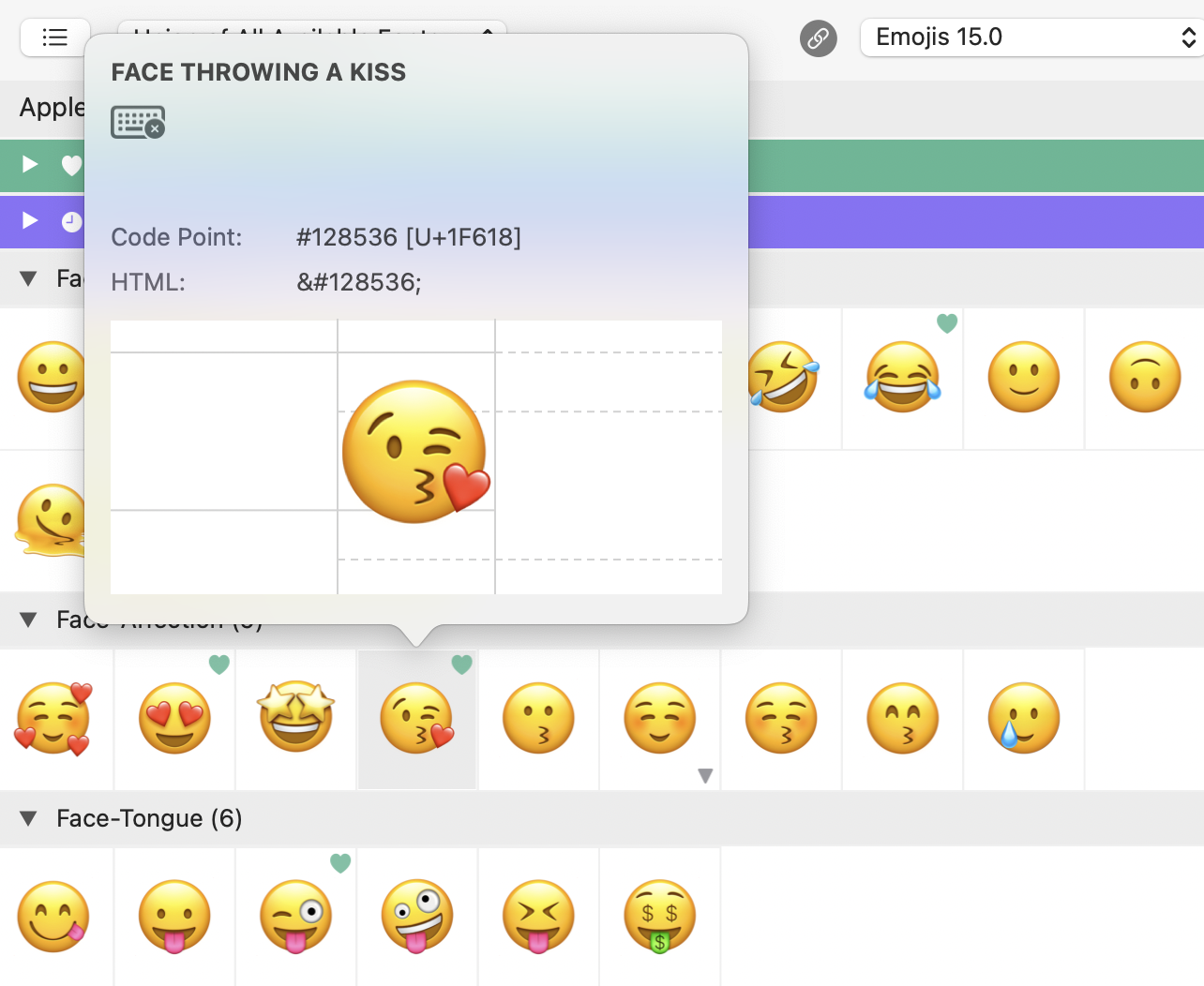
Magnifier Tool provides an enlarged view to see all details of characters including their position relative to the baseline.
Work across font boundaries and see all available characters system-wide.
"Reverse search" for fonts that contain a particular character
Recent characters view for instant access to your frequently used characters
Flexible user interface to satisfy the individual needs of different users
Displays the keystrokes needed to create selected characters.
Automatically detects the current font in many popular applications (including Word, Excel, Illustrator, PageMaker).
Optimized Font menu that contains only the most recently used fonts, giving quick access to the required font, even with hundreds of fonts installed
Various insertion modes: Insert characters as plain or formatted text
Inserts HTML symbols
Hot key activation
Context menu allows you to copy the selected character to the clipboard in various formats (including Unicode number and HTML code).
Automatically starts at login

PopChar makes it easy to "type" unusual characters, HTML characters and characters from Unicode fonts. No need to remember keyboard combinations!

PopChar - the better character map.

PopChar is a background-only application. The small "P" in the system tray indicates that PopChar is running. Though small and unobtrusive, the "P" icon is always there when you need it - no matter in which application you are currently working. Whenever you need a special character, just click the "P" or activate PopChar with a user-defined hot key.

To get an impression how PopChar eases insertion of unusual characters and how you can explore the contents of your fonts, click here to see a short demo movie.

Easily type umlauts with PopChar


Full Unicode support

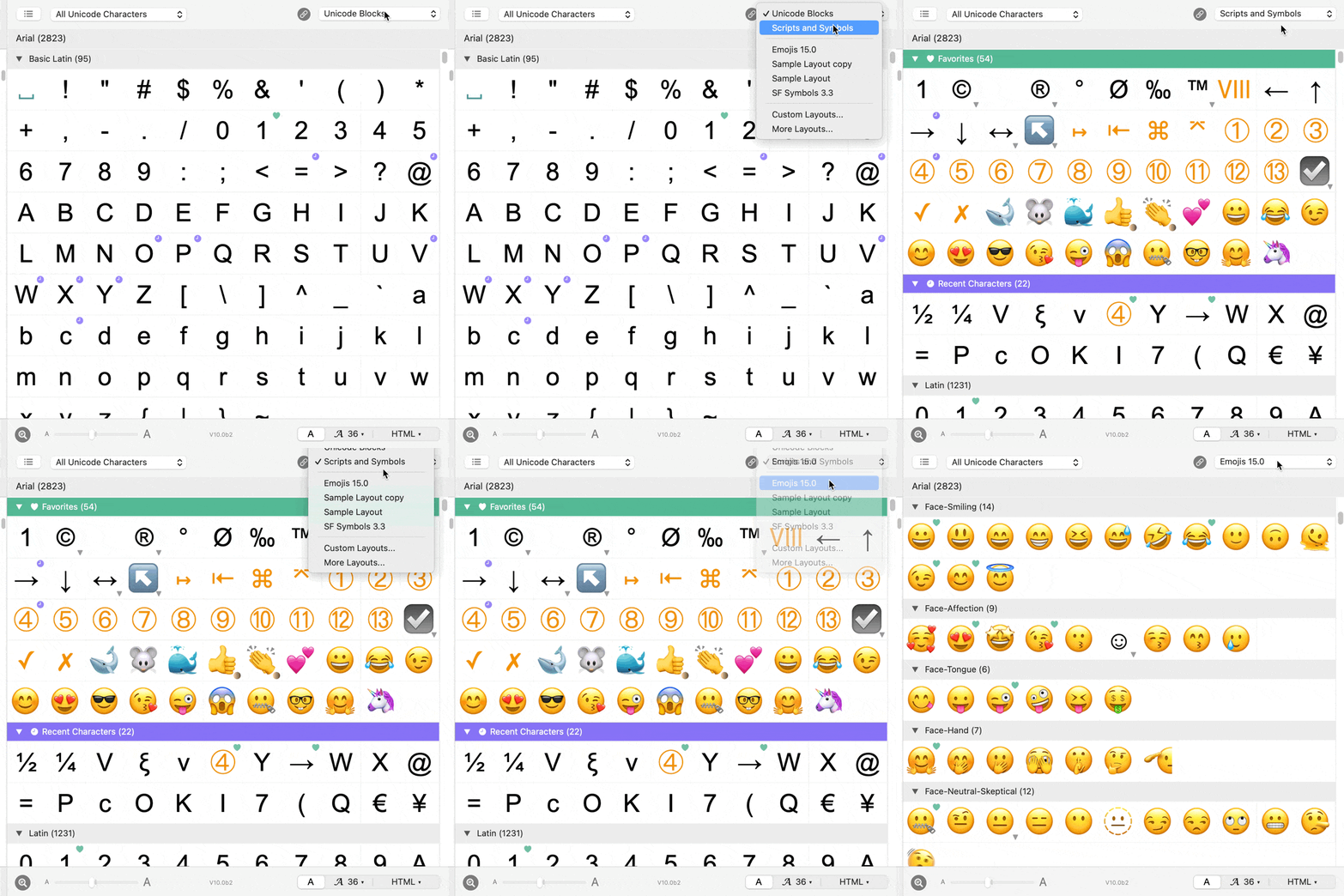
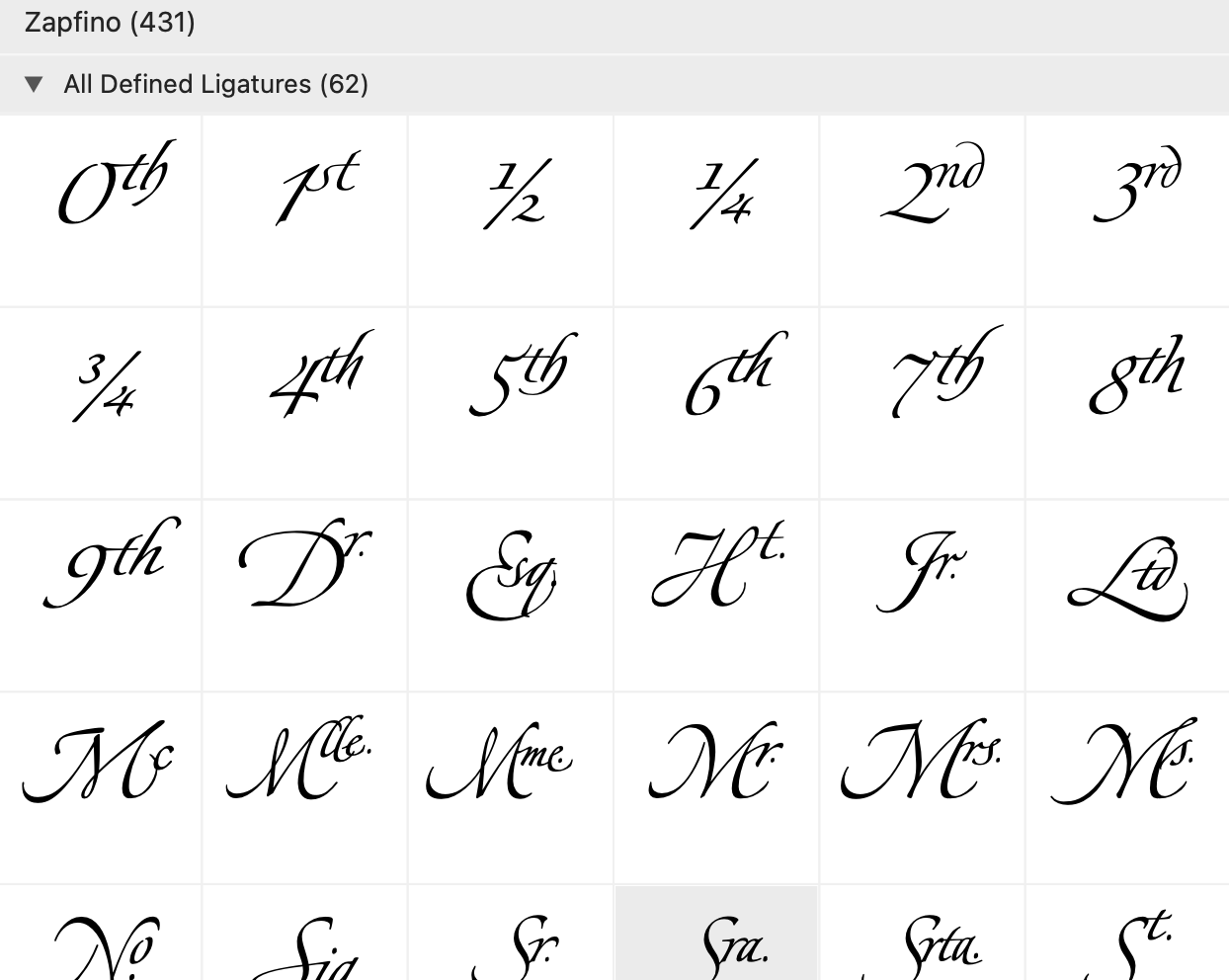
PopChar supports Unicode fonts with thousands of characters. Just enable Unicode mode to see all of them, neatly arranged in the standard Unicode blocks or by scripts and symbols. You can collapse groups you don’t need and use the navigation menu to quickly jump to a specific group.

In Unicode fonts, you can easily navigate through the Unicode characters by scrolling. You can also use the category menu right above the scroll bar to quickly jump to an arbitrary section.

Note: To insert Unicode characters, the target application must be able to handle Unicode. In older applications without Unicode support, you can still use PopChar in ASCII mode, although this will limit the number of usable characters.


Search for characters

The PopChar user interface contains a quick search area. Entering the name of a character in the quick search area temporarily filters out everything else from the character table.

Enter the character "e" into the quick search area to display special characters based on "e" (è. é, ê, ë, …) only.

If you need any particular representation of a number, just enter "number" in the search field to see all appropriate characters.


You can enter decimal or hexadecimal numbers to find the characters with the corresponding Unicode number. Last but not least, you can copy an arbitrary piece of text and paste it into PopChar’s search field. PopChar then displays all characters that occur in the text you entered.


Magnifier tool

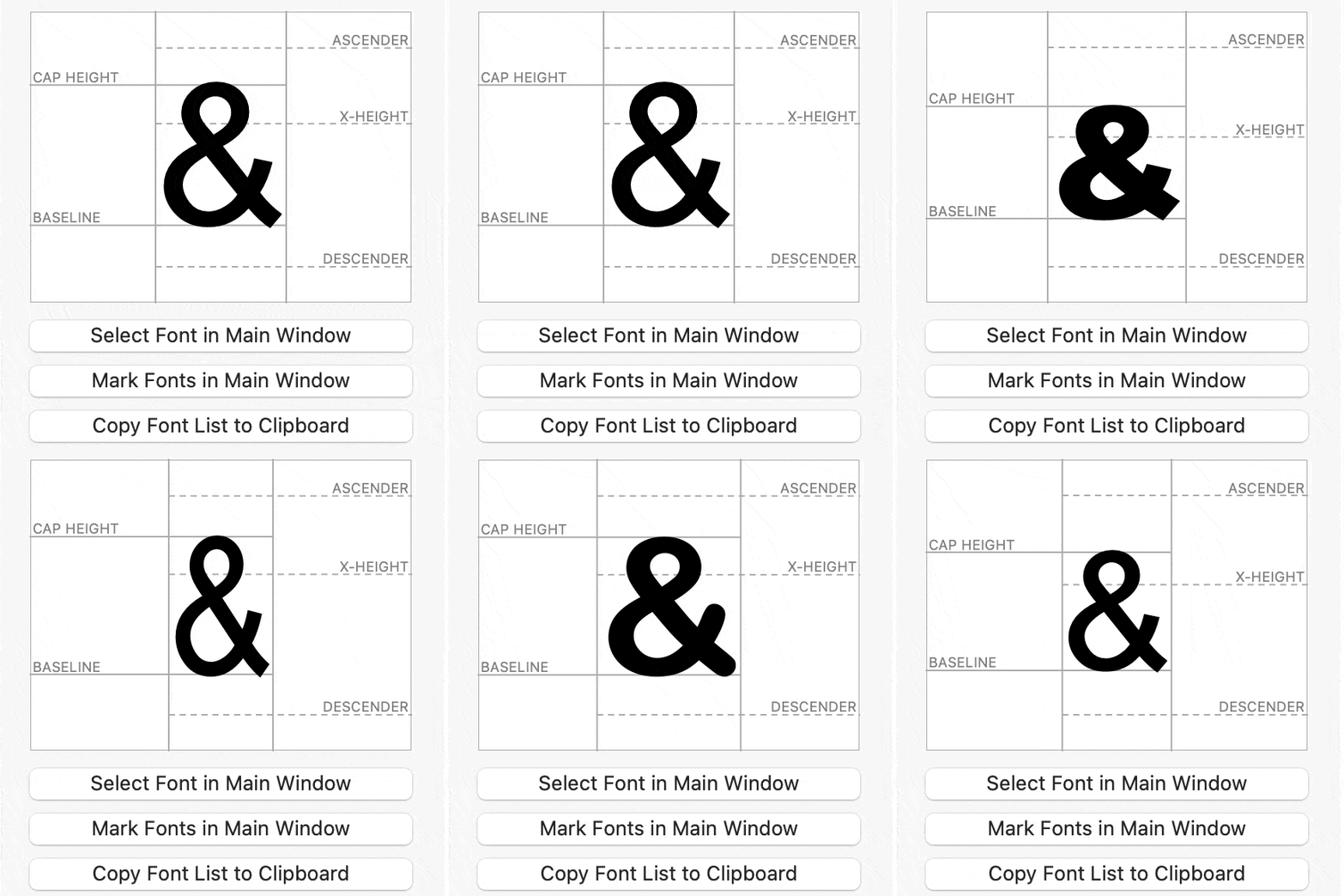
PopChar's magnifier tool lets you see an enlarged view of characters. This is especially useful for characters with small, subtle details. The grid lines in the close-up lens also let you see exactly where a character sits relative to the baseline.

Just activate the magnifier in the bottom-left corner of the window. Whenever you point at a character, PopChar then displays a close-up view of the character.

Hint: You can toggle the current setting of the magnifier at any time by pressing the shift key.


Work across font boundaries

PopChar's "All" view lets you work with all available characters in any font.

Imagine you need the cubic meters symbol in a text written in Verdana. Searching for "cub" does not yield any results, as the Verdana font does not contain such a symbol. To find a matching font in the regular Unicode view, you would need to click through hundreds of fonts until you find one that contains the desired symbol.
As an alternative, the "All" view displays the entire repertoire of Unicode characters available in any font. The search for "cub" now produces the cube root as well as some metric units cubed, including the symbol for cubic meters. Click the symbol, and PopChar inserts it into your document.


"Reverse search" for fonts that contain a particular character

If you have found the cubic meters symbol, you probably wonder in which fonts it exists. Starting with version 4.2, PopChar allows "reverse searching" for fonts that contain a particular character. With a single menu command, you can mark all fonts that contain the desired character and then even jump directly to the marked character in any of these fonts.


Recent characters view

The PopChar window contains an area displaying the most recently used characters, enabling you to locate and insert frequently used characters faster.

Besides that, PopChar highlights recently selected characters in the main view.


Flexible user interface

The PopChar character table appears in a window that can be placed anywhere on the screen.

Preference settings give you detailed control to adjust the behavior of the window to your liking. You can leave the window open permanently until you dismiss it or make it disappear immediately after each use, depending on your personal working style and the size of your monitor.

To make PopChar as unobtrusive as possible, choose "Close window after inserting a character" in the Activation tab of the Preferences window.


Display the keyboard combinations

If you want to learn the keyboard combinations for very frequently used characters, PopChar is also here to help. It shows you the keyboard combination needed to type the selected character on the keyboard. If you need the same character again and again, PopChar tells you how to type it.


Match the font used in your document

PopChar can detect the font being used in the current document for many popular applications (such as Word, Excel, Powerpoint, ...). Check the "As In Document" option, and PopChar will keep track of the current font.

Whenever you select a different font in your current document or move the insertion point into a text portion that uses another font, PopChar automatically displays the same font.


Optimized font menu

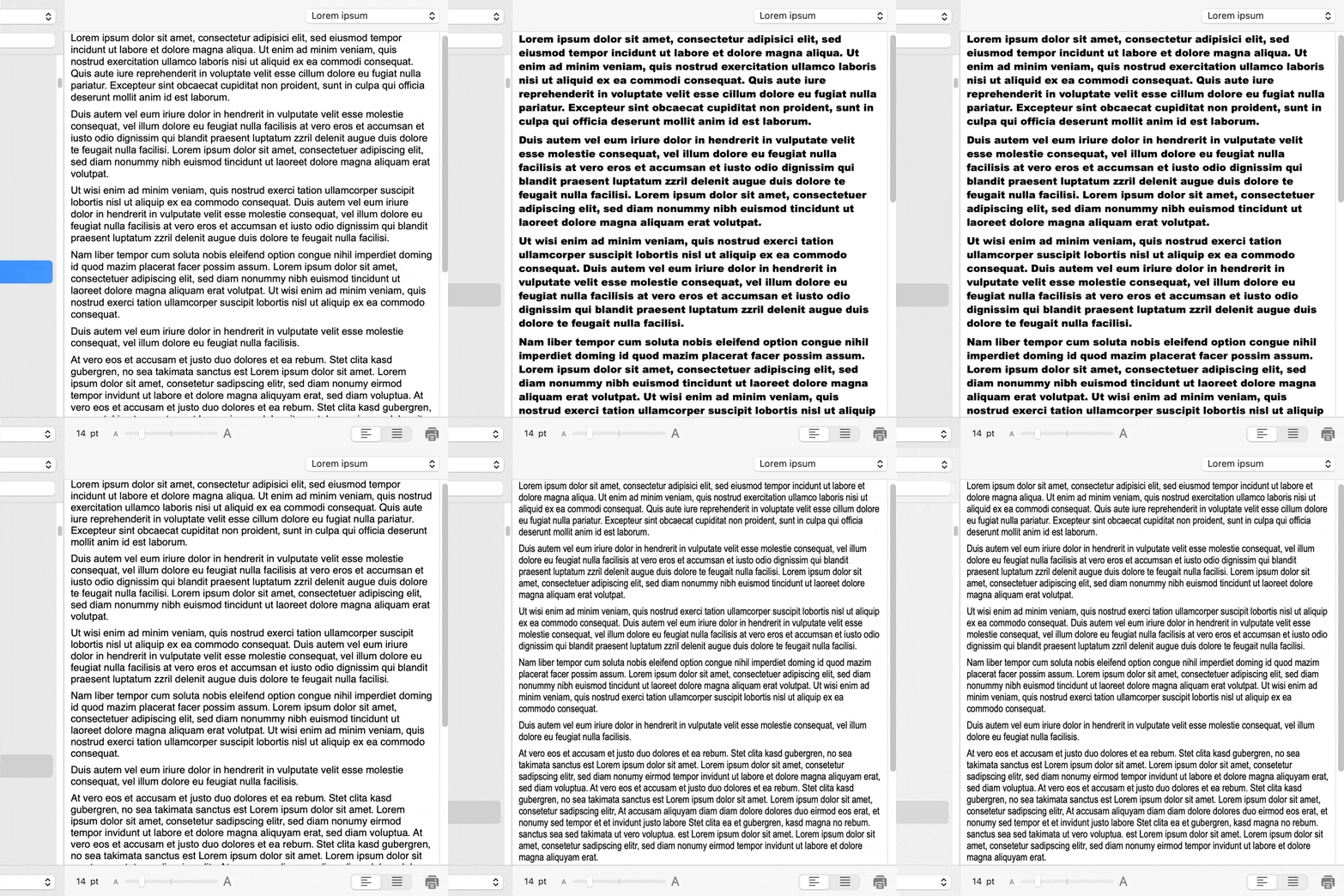
PopChar helps you keep track of your frequently used fonts, even if you have hundreds of fonts installed.

The font menu gives you quick access to the recently used fonts. When you need another font or wish to explore the available fonts, just open the font drawer.


Various insertion modes

PopChar offers three insertion modes. You can choose to insert selected characters as plain text or as formatted text, along with font information and in the font size you specify.

Web designers will appreciate the HTML mode that lets them insert characters as numeric or named HTML codes (see below).

You can also right-click a character to open a context menu for copying the character to the clipboard in various formats.


Inserts HTML symbols

If you frequently edit web pages with a plain text editor, you may find the HTML feature of PopChar useful to insert the HTML codes for arbitrary characters.


webmaster

site map © ergonis software